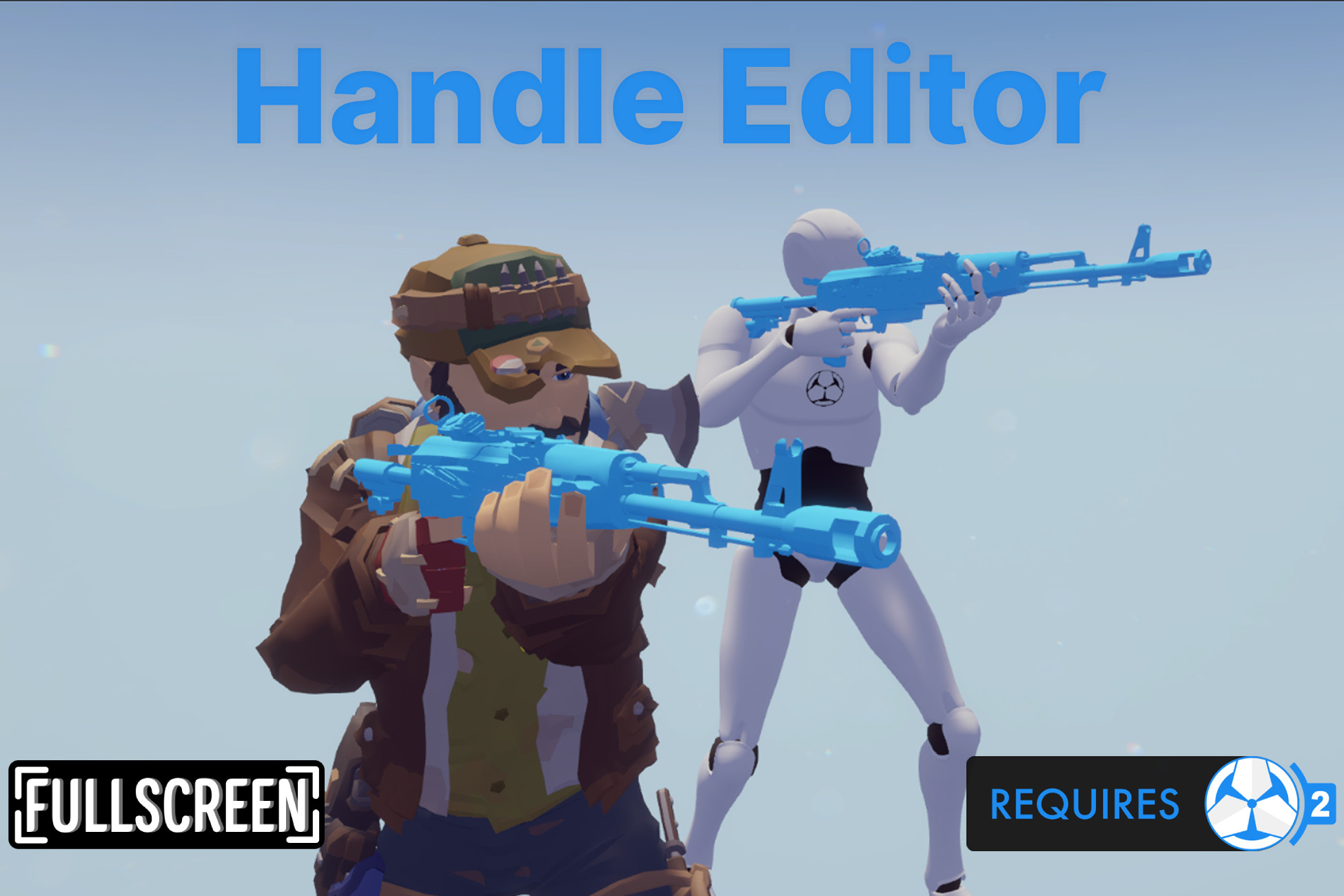
Handle Editor for Game Creator 2
Changing your character model can cause a lot of problems with weapons and other attachments. A Handle that was positioned correctly on one character can point in a completely wrong direction when used on another character.
Handle Editor makes it easy to retarget, create, and edit Game Creator 2 Handles.
Retarget an existing Handle from one Humanoid character to another, preview the result before using it, and fine-tune the position and rotation without entering Play Mode.
Old Character + Old Handle → New Character → Retarget→ Preview → Adjust → Retargeted Handle
Handle Editor works great for retargeting Game Creator 2 Shooter 2 weapons to your own characters, such as Synty characters, but Handle Editor also works with any Game Creator 2 Handle used to attach weapons, props, equipment, or other objects to a character.
Retarget Handles Between Characters
When you change your character model, the old Handle usually won't line up correctly anymore.
Instead of manually adjusting every Handle value, Handle Editor can retarget the Handle from the old character to the new one.
Assign the old character, old Handle, and new character, then create a new Handle for the new model.
Handle Editor transfers the attachment position and rotation based on the Humanoid bones used by the original character.
- Retarget Handles between Humanoid characters
- Keep the original Handle unchanged
- Retain Handle conditions and bone selections
- Automatically create a new Handle for the new character
- Reject unsupported dynamic offsets instead of creating incorrect results
See The Result Before Play Mode
No more entering Play Mode, checking the weapon, exiting Unity runtime, changing the Handle, and repeating the process.
Handle Editor includes a dedicated Handle Preview stage where you can see the attached model directly on the character.
When retargeting a Handle, you can see both the old and new character at the same time. This makes it easy to compare how the attachment looked on the original character and adjust the new Handle until it looks right.
Preview the attachment, make an adjustment, and see the result immediately.
- Preview Handles outside Play Mode
- Compare old and new characters when retargeting
- Preview weapons, props, and other attached models
- Preview using an animation
- Adjust position and rotation while previewing
Easily Adjust Handle Positions
Fine-tune your Handle without manually editing individual entries.
Use exact Position and Rotation values when you know the offset you need, or use the nudge controls for quick adjustments.
Choose how much each nudge should move or rotate the Handle, then use the -X, +X, -Y, +Y, -Z, and +Z buttons to quickly find the correct position.
See the result immediately in the preview stage.
- Position and rotation controls
- Adjustable nudge amounts
- X, Y, and Z adjustments
- Live preview while adjusting
- Apply adjustments to all Handle entries
Create New Handles
Create a Handle for a character without starting from an existing asset.
You can create an empty Handle for a model, or start from an existing Handle and use it as the starting point for a new one.
This makes it easier to create new attachment setups while keeping your existing Handle assets untouched.
- Create Handles from scratch
- Start from an existing Handle
- Apply position and rotation adjustments
- Create Handles for any Humanoid character
Edit Existing Handles
Already have a Handle that is almost correct?
Open it in Handle Editor and adjust the attachment without manually changing each Handle entry.
The changes are previewed first and only applied when you select Save.
- Edit existing Handles
- Preview changes before saving
- Save changes directly to the selected Handle
Perfect For Shooter 2 Weapons
Handle Editor is especially useful when using Game Creator 2 Shooter 2 with custom character models.
For example, you may have a weapon set up for the Game Creator Mannequin, b
Description sourced from the Unity Asset Store listing.