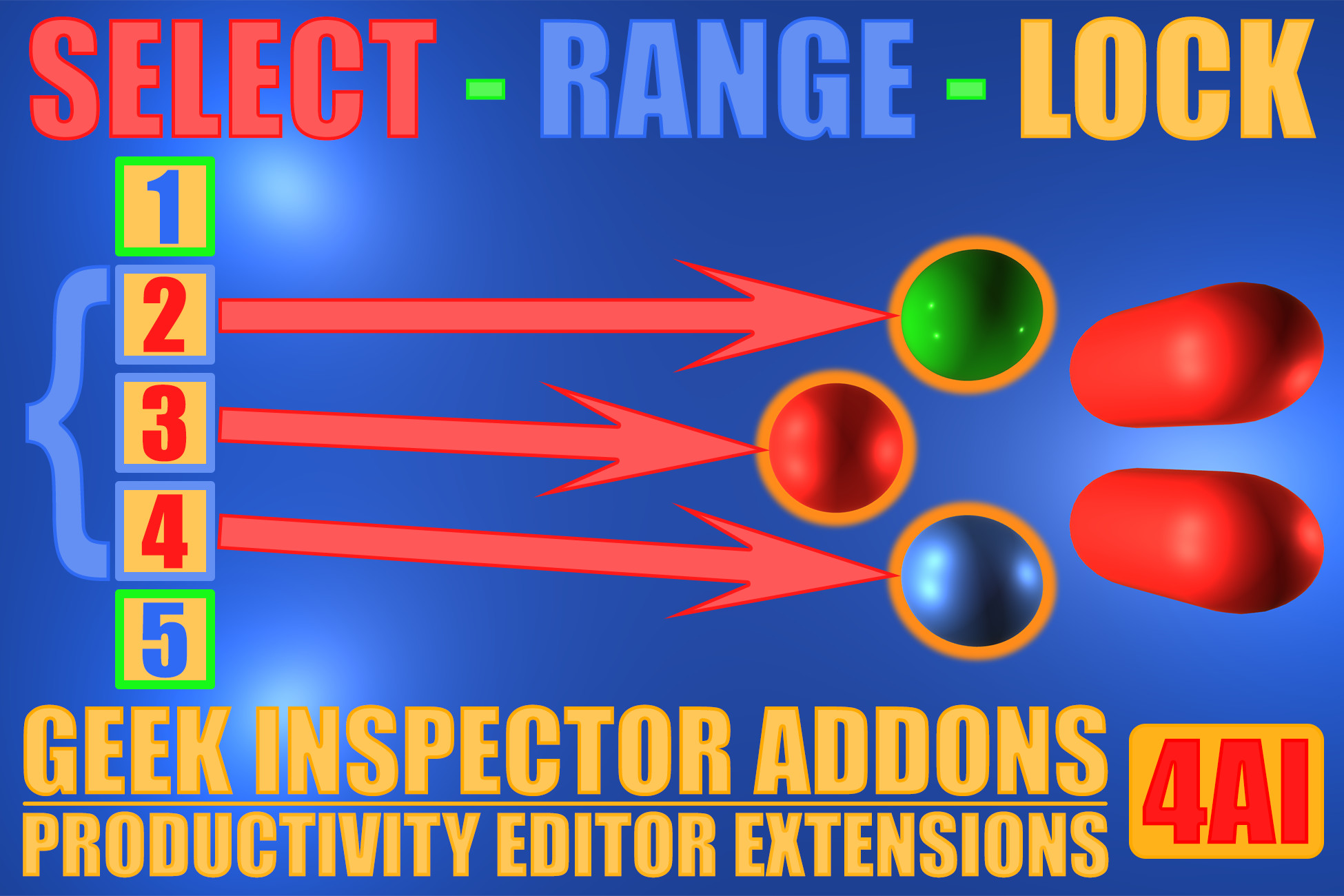
Have you ever wanted to select objects referenced by a range of elements in an array or list in the Unity Inspector? Now it's easy.
This Geek Inspector Addons bundle includes three families of commands described below: “SELECT”, “RANGE”, “LOCK” commands. You can access them in the 4AI Geek Context Menu appended to a standard Unity context menu related to array and list properties.
FULL SOURCE CODE included.
WEBSITE | DOC | GEEK ADDONS | SUPPORT FORUM | BUG REPORTS | FORUM
The bundle extends the Unity Editor and enables:
• selecting game objects or any objects referenced by an array or list range
• setting and resizing the array or list element range,
• different operation modes such as a locked or unlocked element range mode.
The addons included in the bundle extend the Unity Editor as described below.
--------------------------------------------------
OTHER RELEASED 4AI GEEK ADDONS
--------------------------------------------------
• Geek Tools
• List & Array Toolbox
• Editor List & Array Toolkit
• Inspector List & Array Toolkit
• MOVE-RANGE-LOCK Geek Inspector Addons
• COPY-PASTE-RANGE Geek Inspector Addons
• CUT-INSERT-RANGE Geek Inspector Addons
• Visit the publisher page for the full list of productivity extensions.
------------------------------
DEMO SCENE
------------------------------
You can test this package with the free demo scene available in the Asset Store.
For testing, you can also use two MonoBehaviour scripts: ExampleArrays.cs and ExampleLists.cs that contain many different arrays and lists. Attach the scripts to any game objects, define array and list data and then, just right-click on array/list element names to display a context menu with appended 4AI Geek Context Menu.
------------------------------
BUNDLE COMMANDS
------------------------------
SELECT commands
--------------------
• SELECT array GAME OBJECTS <a, b> (appears when the range is unlocked)
• SELECT array GAME OBJECTS <START, END> LOCKED (appears when the range is locked)
• SELECT array OBJECTS <a, b> (appears when the range is unlocked)
• SELECT array OBJECTS <START, END> LOCKED (appears when the range is locked)
RANGE commands
--------------------
• SET RANGE to R (submenus)
• SET RANGE to R LOCKED (submenus)
• RESIZE RANGE by R (submenus)
• RESIZE RANGE by R LOCKED (submenus)
• SET range START and LOCK
• SET range END and LOCK
LOCK commands
--------------------
• LOCK range (appears when the range is unlocked)
• UNLOCK range (appears when the range is locked)
• RELOCK range (appears when the range is locked)
------------------------------
HOW TO USE IT
------------------------------
For the purpose of this description the term “right-click” will be used as the operation opening a context menu.
You can open the 4AI Geek Context Menu as any context menu in the Unity Inspector by right-clicking on an array or list element name (not a value). In some versions of Unity it is also possible to right-click on the array/list name itself - in this case it assumes that the clicked element index is zero. 4AI Geek Context Menu is appended to the standard Unity context menu items. You can learn more details at:
https://4ai.io/geek-addons/
------------------------------
DEFINITIONS
------------------------------
Common terms and identifiers simplifying the descriptions:
• clickedINDEX – clicked array or list item index,
• START – current FIXED / LOCKED range start,
• END – current FIXED / LOCKED range end,
• R – current range size (equal to: END-START+1 in the LOCKED state or b-a+1 in the UNLOCKED state),
• <a, b> – a range where a = clickedINDEX and (b - a + 1) = R
• <START, END>, LOCKED range - a range locked to specific array or list elements that is modified if the position of elements change,
• FIXED range - a range that was usually LOCKED earlier and UNLOCKED later.
------------------------------
SINGLE COMMANDS
------------------------------
SET range START and LOCK
SET the array o
Description sourced from the Unity Asset Store listing.